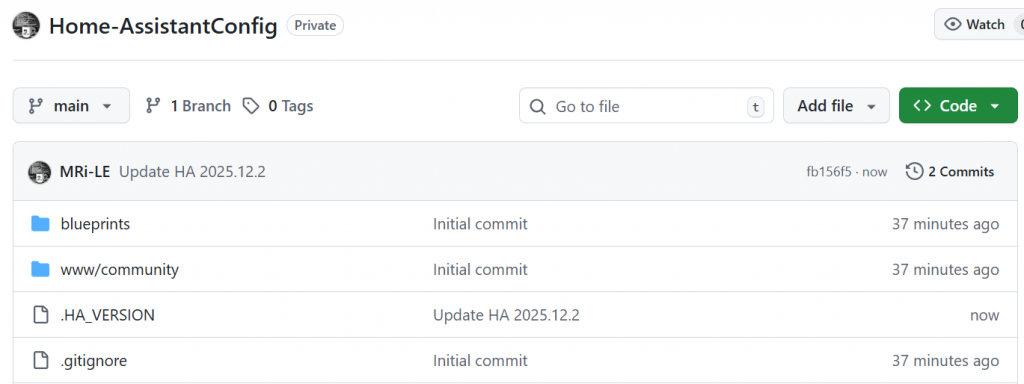
Sharing and regularly syncing your Home Assistant configuration to GitHub has several benefits:
- A remote copy of your Home Assistant YAML files in case you need to recover.
- A documented history of your changes for troubleshooting purposes.
- It will help the Home Assistant community learn from your configuration examples.
NOTE: This will not create a full backup of your Home Assistant files or your Operating System. In addition to backing up to Github, you should consider having regular backups of all your Home Assistant configuration files using Snapshots or by having images of your SD card.
Important Best Practices
Some best practices to consider before putting your configuration on GitHub:
- Extensive use of
secrets.yamlto hide sensitive information like usernames, passwords, device information, and location. - Exclusion of some files, including
secrets.yamland device-specific information using a.gitignorefile. - Regularly committing your configuration to GitHub to make sure that your backup is up to date.
- Use a README.md to document your configuration and include screenshots of your Home Assistant frontend.
Creating Repository on GitHub
- Connect to GitHub and login to your account (or create an account if you don’t already have one).
- Click “New Repository” and give your repository a name/description (
Home-AssistantConfigis used in the example below). You do NOT need to change any other options. - Click “Create Repository”
Create Personal Access Token on GitHub
From your GitHub account, go to Settings → Developer Settings → Personal Access Token → Tokens (classic) → Generate New Token (Give your password) → Fillup the form → click Generate token → Copy the generated Token, it will be something like github_pat_sFhFsSHhTzMDreGRlJjmks4Tzugthdvfsra
Installing and Initializing Git
In order to put your configuration on GitHub, you must install the Git package on your Home Assistant server (instructions below will work on Raspberry Pi, Ubuntu or any Debian-based system) Note: this isn’t required in Hass.io, it’s included as default so proceed to step 3:
sudo apt-get update
sudo apt-get install git
Creating .gitignore
Creating a .gitignore file in your repository will tell Git which files NOT to push to the GitHub server. This should be used to prevent publishing sensitive files to the public. It should contain a list of filenames and pattern matches. This list should include at least your secrets.yaml file, device configuration files, and the Home Assistant database/directory structure. The .gitignore file should be placed in the root of your Home Assistant configuration directory: <config dir>/.gitignore
Here is an example that will deny everything by default, then explicitly allow configuration files:
# Home Assistant .gitignore - Comprehensive Whitelist Approach
# Deny everything by default, then explicitly allow configuration files

# Deny everything first
*
!*/

# Track this file
!.gitignore

# Core configuration files
!configuration.yaml
!automations.yaml
!scripts.yaml
!scenes.yaml
!known_devices.yaml

# Domain-specific configuration files (include all that might be present)
!climate.yaml
!cover.yaml
!group.yaml
!input_boolean.yaml
!input_button.yaml
!input_datetime.yaml
!input_number.yaml
!input_select.yaml
!input_text.yaml
!light.yaml
!media_player.yaml
!switch.yaml
!sensor.yaml
!binary_sensor.yaml
!camera.yaml
!device_tracker.yaml
!notify.yaml
!zone.yaml
!person.yaml
!recorder.yaml
!history.yaml
!logbook.yaml
!logger.yaml
!customize.yaml
!customize_domain.yaml
!customize_glob.yaml

# Packages directory
!packages/
!packages/**/*.yaml
!packages/**/*.yml

# Blueprints
!blueprints/
!blueprints/**/*.yaml
!blueprints/**/*.yml

# Packages
!packages/
!packages/**/*.yaml
!packages/**/*.yml

# AppDaemon
!appdaemon/
!appdaemon/appdaemon.yaml
!appdaemon/apps/
!appdaemon/apps/**/*.py
!appdaemon/apps/**/*.yaml
!appdaemon/apps/**/*.yml

!appdaemon/dashboards/
!appdaemon/dashboards/**/*.dash
# Exclude AppDaemon runtime files
appdaemon/compiled/
appdaemon/namespaces/
appdaemon/www/

# Node-RED (if used)
!node-red/
!node-red/**/*.json
!node-red/**/*.js
node-red/**/node_modules/

# Zigbee2MQTT
!zigbee2mqtt/
!zigbee2mqtt/**/*.yaml
!zigbee2mqtt/**/*.yml
!zigbee2mqtt/**/*.json

# ESPresense
!espresense/
!espresense/**/*.yaml
!espresense/**/*.yml

# MQTT discovery or other integrations
!mqtt/
!mqtt/**/*.yaml
!mqtt/**/*.yml

# Lovelace UI configuration files (if not stored in .storage)
!ui-lovelace.yaml
!lovelace/
!lovelace/**/*.yaml
!lovelace/**/*.yml

# Themes
!themes/
!themes/**/*.yaml
!themes/**/*.yml

# Python scripts
!python_scripts/
!python_scripts/**/*.py

# Shell commands and scripts
!shell_commands/
!shell_commands/**/*

# WWW directory (static files for Lovelace/frontend)
!www/
!www/**/*.js
!www/**/*.css
!www/**/*.html
!www/**/*.json
!www/**/*.yaml
!www/**/*.yml

# Allow additional file types for custom cards/resources
!www/**/*.ts
!www/**/*.map
!www/**/*.LICENSE.txt
# Exclude certain auto-generated or large files in www
www/**/*.gz

# Exclude frigate as it stores config in lovelace
www/community/frigate-hass-card/*

# Exclude advanced-camera-card
www/community/advanced-camera-card/*

# Version tracking
!.HA_VERSION

# Allow documentation files only in root
!*.md
/**/*.md


# Addon configurations - Allow essential config files only
addon_configs/**/*
!addon_configs/*/
# Node-RED addon configs
!addon_configs/*/flows.json
!addon_configs/*/package.json
!addon_configs/*/settings.js
!addon_configs/*/.config.nodes.json
!addon_configs/*/.config.runtime.json
!addon_configs/*/.config.users.json
!addon_configs/*/node-red-contrib-*.json
# Exclude Node-RED runtime files
addon_configs/*/node_modules/
addon_configs/*/.flows.json.backup
addon_configs/*/context/
addon_configs/*/nodes/
addon_configs/*/lib/
addon_configs/*/.config*.backup
addon_configs/*/.npm/

# Exclude all runtime data and cache directories
.storage/
.cloud/
deps/
tts/
**/__pycache__/
**/*.pyc
**/*.pyo
**/*.pyd

# Exclude database and log files
**/*.db
**/*.db-shm
**/*.db-wal
**/*.log
**/*.log.*
**/*.pid
**/*.sock
**/*.tmp
**/*.backup
**/*.bak

# Exclude Home Assistant specific runtime directories
components/
.uuid
.HA_VERSION.*

# Exclude large media files that shouldn't be in Git
**/*.mp4
**/*.avi
**/*.mkv
**/*.mov
**/*.mp3
**/*.wav
**/*.flac

# Exclude certificate and key files (security)
**/*.pem
**/*.key
**/*.crt
**/*.p12
**/*.pfx

# Exclude service account and credential files
**/SERVICE_ACCOUNT.JSON
**/client_secret*.json
**/google_assistant_*.json
**/*_credentials.json

# Exclude secrets file (move sensitive data here)
secrets.yaml


# OS specific files
.DS_Store
.DS_Store?
._*
.Spotlight-V100
.Trashes
ehthumbs.db
Thumbs.dbNOTE: If you already have your secrets published. It is not enough to just remove them with a new commit. Git is a version control system and keeps history. You need to delete your repository and start a new one. Also change all passwords and revoke the API keys that were public.
Preparing your Home Assistant directory for GitHub
In your Home Assistant config directory, type the following commands as the Home Assistant user, replacing the email address and name with your information:
git init
git config user.email "<you@example.com>"
git config user.name "<Your Name>"
git add .
git commit -m "Initial Commit"
➜  /config git init
hint: Using 'master' as the name for the initial branch. This default branch name
hint: is subject to change. To configure the initial branch name to use in all
hint: of your new repositories, which will suppress this warning, call:
hint:
hint:   git config --global init.defaultBranch <name>
hint:
hint: Names commonly chosen instead of 'master' are 'main', 'trunk' and
hint: 'development'. The just-created branch can be renamed via this command:
hint:
hint:   git branch -m <name>
Initialized empty Git repository in /homeassistant/.git/

➜  /config git:(master) ✗ git branch -m main

➜ /config git:(main) ✗Your initial commit to GitHub
Once you are sure you are using secrets.yaml and .gitignore correctly, it is time to push your configuration to the GitHub Repository that you just created.
git remote add origin https://github.com/<username>/Home-AssistantConfig
git push -u origin main

As passwords are no longer allowed you must use an SSH key passphrase or create a personal access token.  Read More: Password authentication is not supported for Git operations
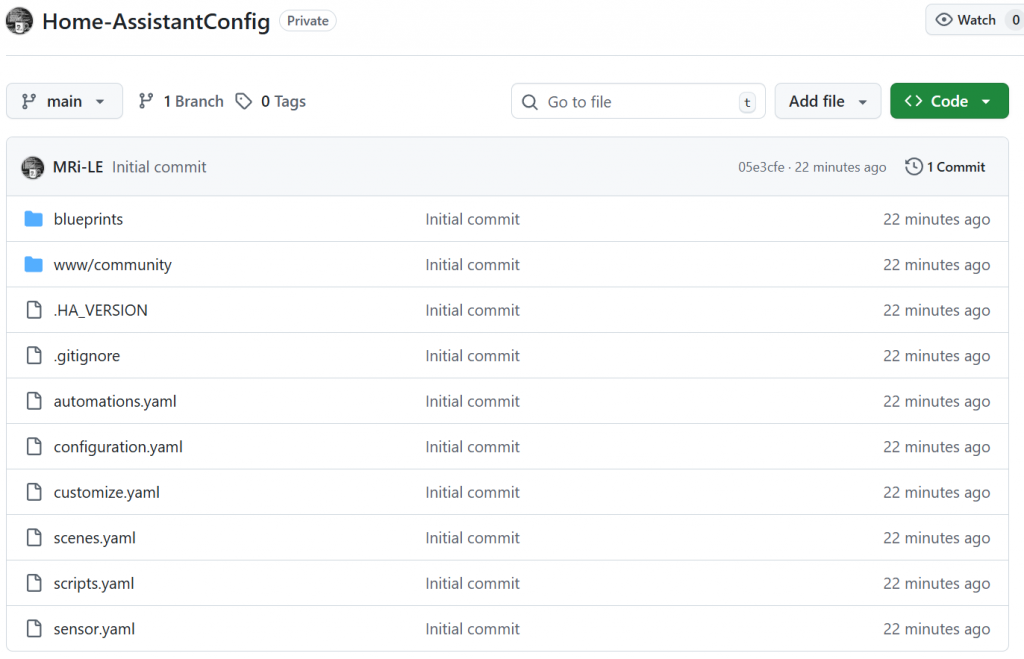
You now have a first commit of your current Home Assistant Configuration on GitHub
Keeping your HA Config repository up to date
It is important to update your repository regularly, especially after making significant configuration changes such as adding a new device or component. The following script will help you update your repository with any modified configuration files and enable you to include a commit message for easy tracking.
1. Ensure caching of your Github PAT
I am using PAT and want to store my credentials using a credential helper, so the automation can use it.
git remote set-url origin https://<github-token>@github.com/<username>/Home-AssistantConfig
git config --global credential.helper cache
git config -l
2. Create a shell script to execute your git update
touch /config/shell/git_update.sh
chmod +x /config/shell/git_update.sh
#!/bin/bash

# create a logfile name (optional: with date/time)
LOGFILE="/config/git_update.log"

# write timestamp at start of log
echo "==== $(date '+%Y-%m-%d %H:%M:%S') — Starting git_update ====" > "$LOGFILE"
echo "Running script: $0 with commit message: $*" >> "$LOGFILE"

# redirect rest of output (stdout & stderr) into same log (append)
exec >> "$LOGFILE" 2>&1

set -x

git config --global --unset-all safe.directory
git config --global --add safe.directory /config

cd /config

git add .
git status

git commit -m "$1"
git push origin main

exit
3. Create a text_input helper to enable setting a commit comment:
input_text:
  git_commit_comment:
    name: Git Commit Comment
    icon: mdi:git
    min: 0
    max: 100
    mode: text
4. Create a Shell Command Integration
Integrate your shell script into Home Assistant configuration.yaml as a Shell Command, so it can be called from an automation:
shell_command:
  git_update: "bash /config/git_update.sh '{{ states.input_text.git_commit_comment.state }}'"
# Note: the shell_command uses the text_input as an argument to be passed to the script and to be used as commit comment!5. Create a Home Assistant Script to call the Shell Command and add to Dashboard
action: shell_command.git_update
metadata: {}
data: {}The goal will be a Dashboard Action to manually trigger a Update with optional commit comment.

type: vertical-stack
cards:
  - type: entities
    entities:
      - entity: input_text.git_commit_comment
        name: Commit Comment
      - entity: script.github_update
        secondary_info: last-triggered
        name: Update GitHub
    show_header_toggle: false
Example Git Update after HA Upgrade to 2025.12.2 being reflected in the Git Repository